
Adding Clinilabs tests as products in Semble
Add a test or profile that isn't in Semble's standard list, so you can order it and charge for it.
Our standard test list is loaded into Semble for you once you've linked Clinilabs as your lab. If you want to order a test or profile that isn't there, such as a custom profile we've set up for your clinic, add it to Semble as a lab product.
Find the test code
Every Clinilabs test has a test code. Semble uses it to send the order to us, so it must be exactly right.
- Sign in to the Clinilabs portal and open Tests List.
- Search for the test or profile. The code is shown with its name. For example, a profile called Custom Profile 1 might have the code CUSP1.
For a custom profile, we'll also tell you its code when we set it up.
If you're not sure which test to choose, ask us before you add it. See Choosing tests.
Adding the product
In Semble, you need a role that lets you edit Products and Labs.
- In Semble, open Products, then select New and New product.
- Open the Type menu and choose Lab.
- Fill in: - Name: the test or profile name, as you'd like it to appear in Semble. - Price: what your clinic charges the patient. - Product code: the Clinilabs test code, for example
CUSP1. Leave This is an appointment that can be booked in the calendar unticked. - Under More details, add anything else you use, such as Tax or Cost (what we charge you).
- Select Save.
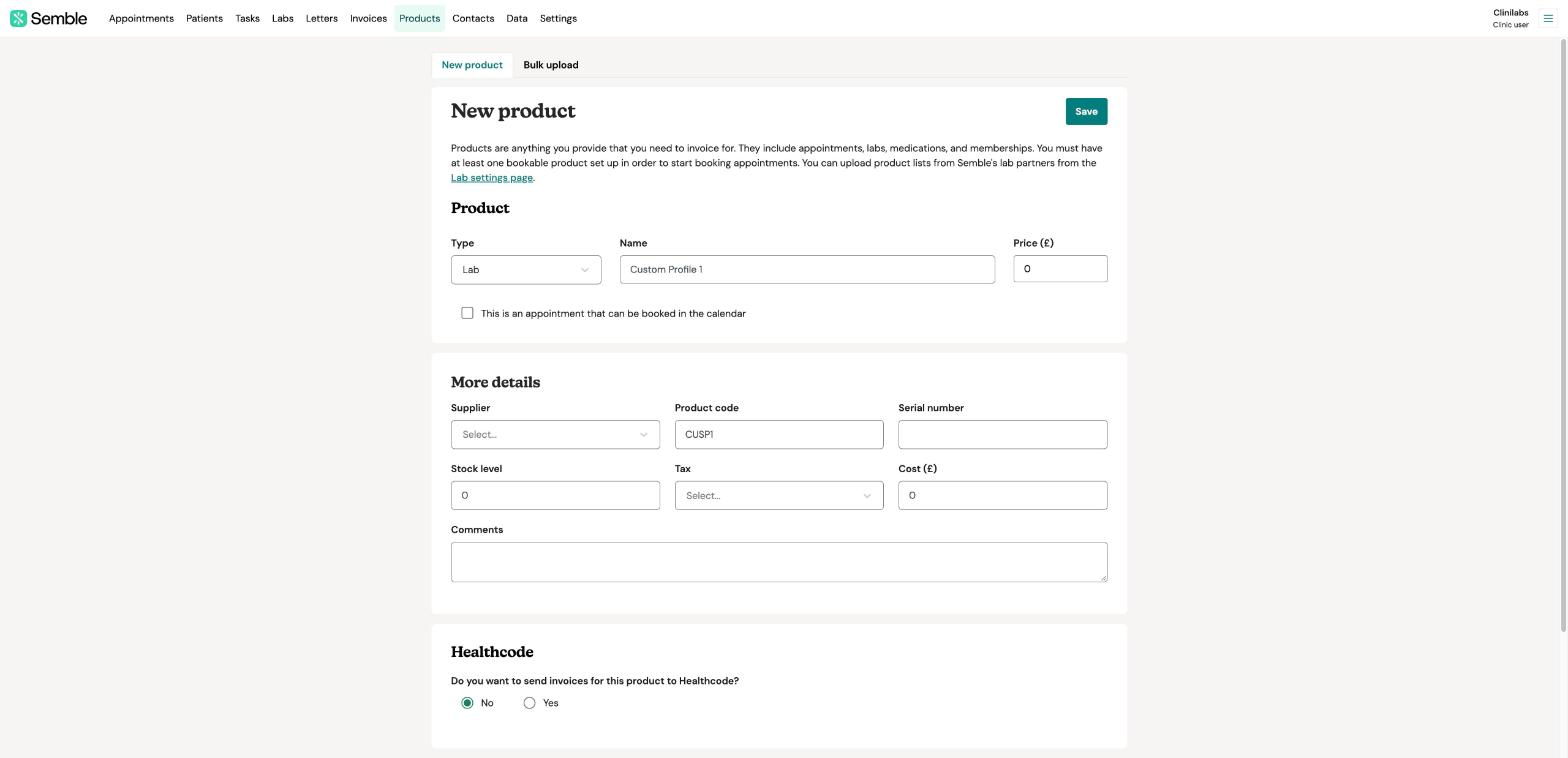
The test now appears on your Products page and can be requested as a lab.
Prices
The price in Semble is what you charge the patient. Clinilabs invoices your clinic separately at your agreed prices. See Invoices.